RAM Price Shock: Why Your Next Upgrade Will Cost Double
Compiled by the Server Hub newsroom · Edited by Humphrey Theodore K. Ng’ambi
Updated 4 August 2026
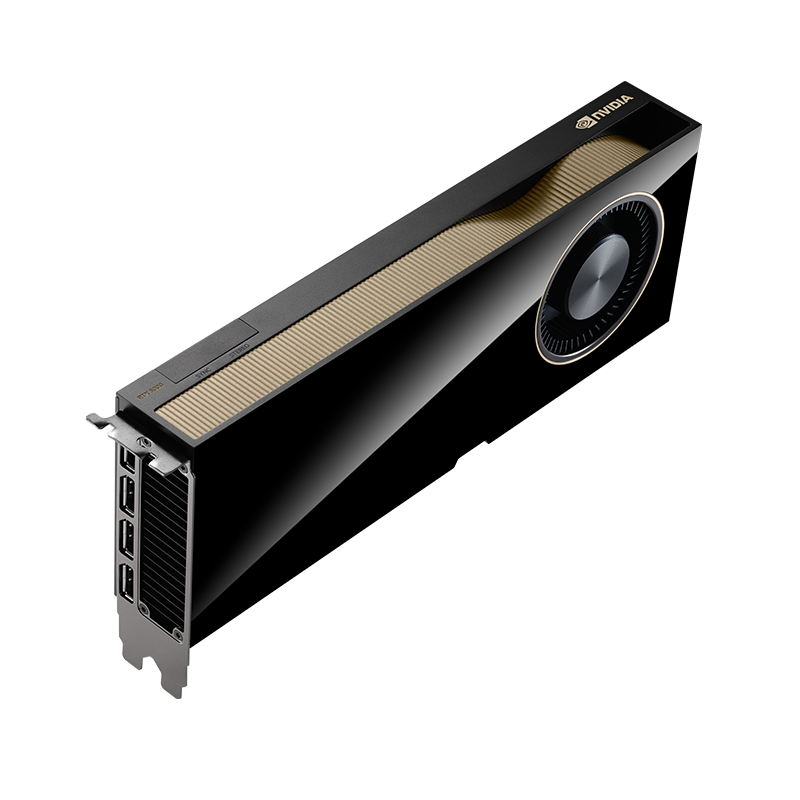
The AI boom has sent memory prices soaring. Before you sign that PO, here are the hardware and software fixes that can keep your existing machines running smoothly.
A global memory shortage, driven by the AI boom, is causing DRAM prices to skyrocket, making routine hardware upgrades a significant financial challenge. According to a recent report, prices have climbed by as much as 90 percent. For South African businesses, this means the cost of new servers and workstations is climbing steeply, forcing a hard look at optimising existing assets rather than replacing them.
The New Reality of Memory Costs
The server and PC market is facing a severe memory shortage that has been building for months. A report from PCWorld details how the explosive growth in AI is diverting huge portions of DRAM production to data centres, leaving less for traditional hardware. This supply crunch has had a dramatic effect on pricing.
Citing data from TrendForce, the report notes that prices for standard DRAM modules rose by approximately 90 percent in the first quarter of 2026. Hardware manufacturer HP also stated that memory and SSDs now represent around 35 percent of a PC's material cost, a sharp increase from the previous 15 to 18 percent.
For buyers in South Africa, this global trend is amplified by import logistics and currency volatility. Industry analysts do not expect the market to stabilise soon, with high prices predicted to persist until at least 2027. This makes extending the life of current hardware a critical business strategy.
Any IT manager planning a hardware refresh or a new deployment must now factor these inflated costs into their budgets. If a planned purchase is no longer viable, the focus must shift from acquisition to optimisation, squeezing every bit of performance from the machines you already own.
Unlock Performance Already in Your Hardware
Before considering a costly purchase, it is essential to ensure your current RAM is performing optimally. Many systems are not configured correctly from the factory, leaving significant performance on the table. The first step is to verify your RAM is working without faults, using Windows' built-in 'mdsched.exe' tool or the more thorough MemTest86.
A common and costly mistake is incorrect module placement. For a dual-channel memory configuration, which doubles theoretical bandwidth, modules must be in the correct slots. PCWorld notes that for motherboards with four slots, this usually means using slots A2 and B2 (often slots 2 and 4). Using the free CPU-Z utility can confirm if your system is running in 'Dual' or 'Single' channel mode.
Beyond physical placement, check your UEFI (BIOS) settings. Most RAM modules ship with performance profiles that are often disabled by default. Look for settings like XMP (for Intel systems) or EXPO (for AMD) and enable 'Profile 1'. This simple change unlocks the full speed and optimised timings you paid for, which can deliver a massive performance boost, especially for systems using integrated graphics.
Tame Software and Reclaim Wasted RAM
Even with perfectly configured hardware, software can squander precious memory. The PCWorld article recommends a forensic approach to finding and disabling resource hogs. Use the Windows Task Manager to sort processes by memory usage. Pay close attention to the 'Committed Size' column, which reveals the total memory a program has reserved, not just what it's currently using.
Many background processes consume RAM for features you may not need. The report suggests disabling the 'Widgets' feature in the taskbar, which constantly runs 'Widgets.exe'. Likewise, the 'SysMain' service (formerly Superfetch), which pre-loads apps into memory, can be disabled to free up RAM, with the minor trade-off of slightly slower initial app launches.
Web browsers are notorious memory consumers. Both Google Chrome ('Memory Saver') and Microsoft Edge ('Automatically put tabs to sleep') have built-in features to suspend inactive tabs, reducing their memory footprint by a reported 32 percent in Edge's case. Activating these is a quick win for reclaiming system resources.
On Windows 11, new AI features like Recall and Copilot are also significant resource drains. The article provides detailed steps for disabling them via PowerShell and the Group Policy Editor or Registry. For business environments focused on stability and performance, turning off these non-essential, memory-intensive features is a prudent step.
The Page File: Your Last Line of Defence
When physical RAM runs out, Windows uses a 'page file' on your SSD or hard drive as virtual memory. PCWorld stresses that you should never disable this safety net, as it can lead to system instability and crashes. However, you can optimise its configuration for better performance.
Instead of letting Windows manage the file size dynamically, which can cause performance overhead, you can set a fixed size. The recommendation is to set a custom size on your fastest drive, with the initial and maximum values being the same—typically 1.5 to 3 times the amount of your physical RAM.
This prevents the operating system from constantly resizing the file during heavy use, which reduces SSD fragmentation and processing load. While not a substitute for sufficient physical RAM, a properly configured page file is a crucial part of maintaining a stable system under memory pressure.
Frequently asked questions
- Is it still worth buying a PC with only 16GB of RAM?
- Yes, for many business and productivity tasks, 16GB is still sufficient, especially if you apply the software optimisations discussed. While power users may struggle, a well-tuned 16GB system is a viable way to manage costs until prices normalise.
- Will making these software changes void my PC's warranty?
- No. All the recommended software and UEFI adjustments use standard, built-in configuration options provided by Microsoft and motherboard manufacturers. They do not involve modifying hardware or using unsupported tools and are completely reversible.
- How does load-shedding affect my RAM?
- RAM itself is volatile and is cleared when the power goes out. However, frequent, abrupt shutdowns from load-shedding put stress on all system components, including the motherboard and memory controller. Ensuring your RAM is stable by running tests like MemTest86 is even more crucial in this environment to prevent data corruption or hardware failure.
Browse at Server Hub
Sources
Compiled by the Server Hub newsroom from the reporting above. Every factual claim is checked against those sources before publication, and every source is linked so you can verify it yourself. How we work.
The Server Hub briefing
South African IT hardware news, once a week.
What’s new, what it costs in rand, and what it means for the kit you run — servers and storage, networking, backup power, surveillance and print. Every claim checked against a named source.